Article ID: SWH-KB-nID-000035054
Problem
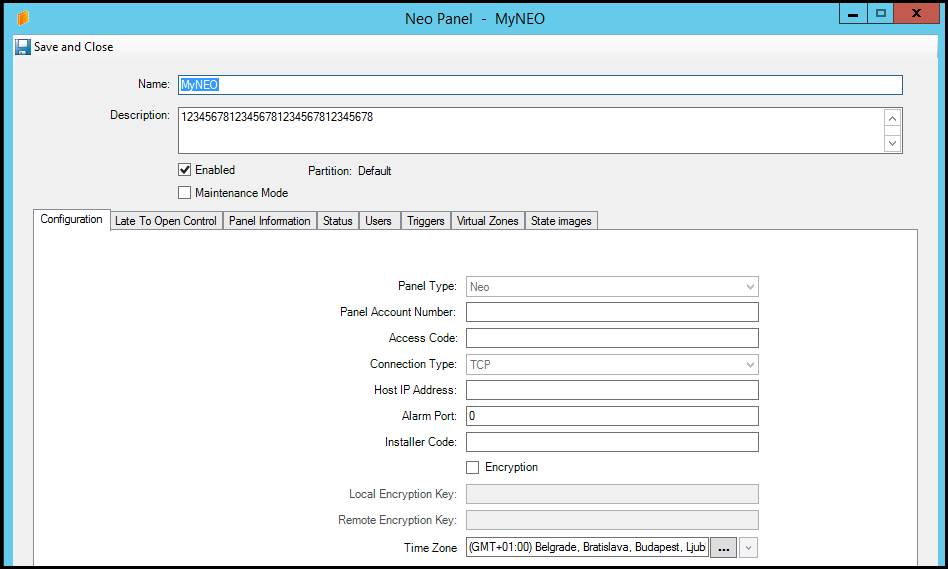
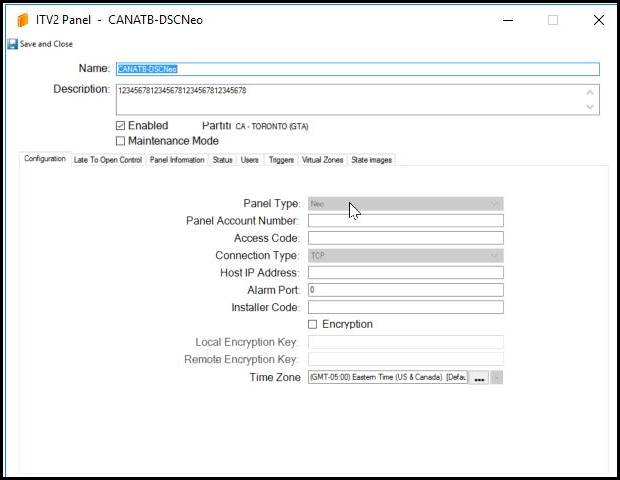
Occasionally, customers have reported that after saving their CCure9000 NEO \ ITv2 Panel configuration, they find that almost all of the fields are empty when they open the panel configuration up afterwards, as in the two ITv2 Panel configuration examples illustrated below. Additionally, the configured ITv2 Panel won’t come online and communicate. Note that it isn’t possible to intentionally configure and save ITv2 Panel configurations in this condition.
Additional Symptom:
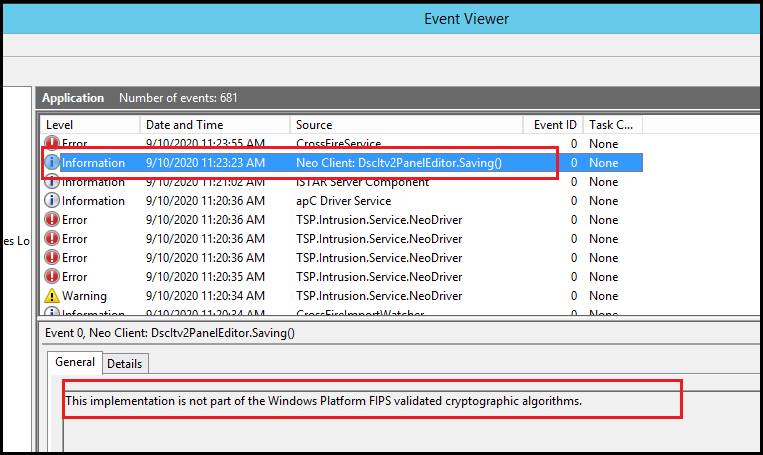
A Windows APPLICATION Event Viewer error like the one illustrated below which will be generated each time you attempt to save the NEO \ ITV2 Panel configuration. (note that the APPLICATION Event Viewer error will reference either “NEO” or “ITv2”, depending on which version of the integration you’re currently running). “This implementation is not part of the Windows Platform FIPS validated cryptographic algorithms.”
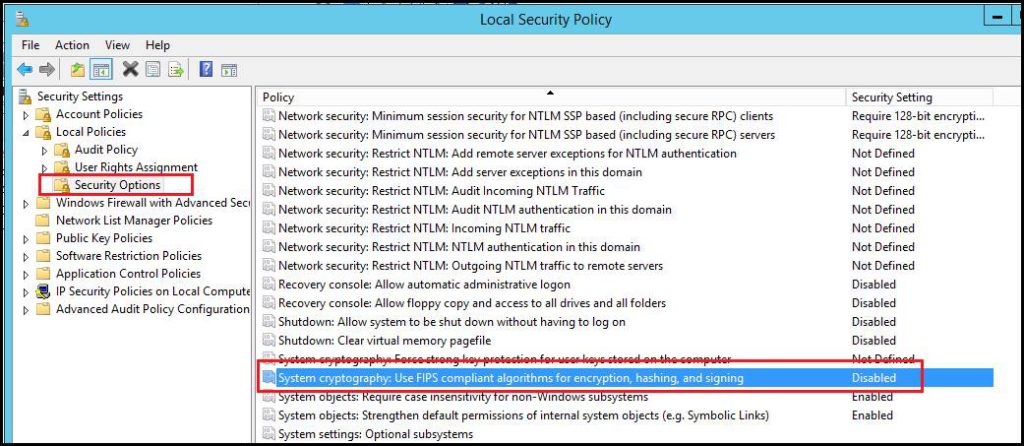
The root cause of this problem is that the System Cryptography Security Policy is enabled on the CCure9000 PC. To resolve this problem, disable the System Cryptography Security Policy as illustrated in the image below. Then, stop and restart the CCure9000 CROSSFIRE Services.
Afterwards, it’ll be possible to correctly save the NEO \ ITv2 Panel configurations and all of the fields will remain intact and populated.
CCURE9000_SWH-KB-nID-000035054_It_en.pdf