Overview
For optimum performance when viewing video, use Chrome or Microsoft Edge. In addition, ensure that you configure your browser to use hardware acceleration.
In order to maximize the browser’s graphics performance for C•CURE IQ, we need to enable “High Performance” mode for browsers that run C•CURE IQ client. The following are examples of of Google Chrome and Microsoft Edge.
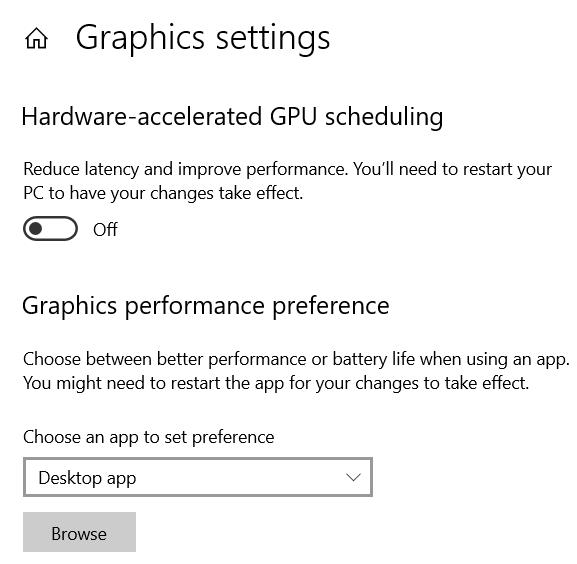
Go to Display Settings, on the Display page, scroll down, and find Graphics settings.
Google Chrome
In the “Choose an app to set preference” dropdown, choose “Desktop app”, then click “Browse”.
Find Google chrome.exe in the following path:
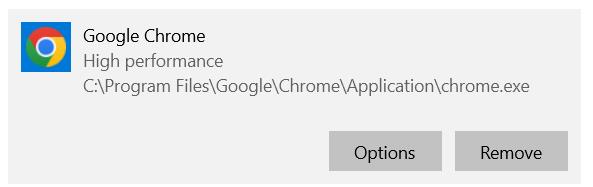
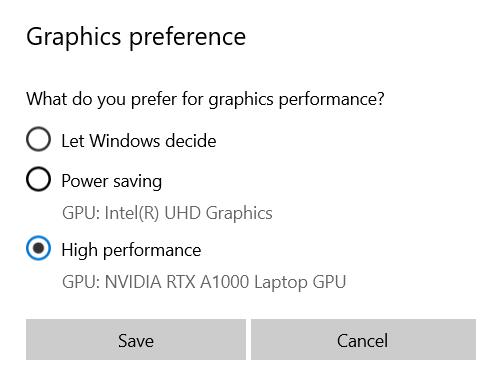
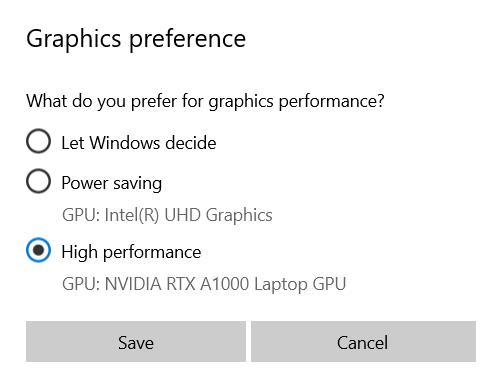
Then click “Options” and choose “High Performance“, then click Save.
Microsoft Edge
In the “Choose an app to set preference” dropdown, choose “Desktop app“, then click “Browse“
Find msedge.exe in the following path.
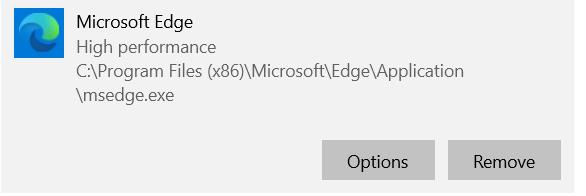
Then click “Options” and choose “High Performance”, then click Save.
NOTE: Please Restart the PC to ensure all changes are fully applied.
C•CURE-IQ-Video-Performance-Enable-GPU-for-high-performance.pdf