Article ID: SWH-KB-nID-000035223
Published: Feb-03-2023
When importing dates and date\time values into CCure9000 personnel records and Credentials, the imported date format may sometimes be incorrect with respect to the Regional Settings of the customer system. The most common problem that results from this scenario is that the MONTH & DATE components of the imported date will be reversed.
For example –
The standard date format in the U.S. is mm-dd-yyyy.
But the standard date format in England is dd-mm-yyyy.
Depending on how the Regional Settings are configured on the CCure9000 server PC and the date formatting is specified in the data that’s being imported, the CCure9000 import process may reverse the DATE & MONTH components, producing undesired import results.
This can result in the imported record reflecting the wrong date in the CCure9000 system.
For example let’s assume you’re importing this date value: 01/06/2022
In the USA, that date equates to January 6, 2022.
But in England, that date equates to June 1, 2022.
So, if your CCure9000 system is located in England and you import this date value, 01/06/2022,
the intended date that should be imported into CCure9000 us June 1, 2022 but instead, you might end up with January 6, 2022 being imported into the CCure9000 system instead.
Another possible scenairo is that the MONTH & DATE components are reversed resulting in an invalid date and thus, the imported record is rejected.
For example let’s assume you’re importing this date value: 11/21/2022
In the USA, that date equates to November 21, 2022.
But in England, that’s not a valid date since there isn’t a 21st month of the year.
So, if your CCure9000 system is located in England and you import this date value, 11/21/2022, the imported record might be rejected for import due to an invalid date format.
Resolving this type of problem has often been challenging as it requires modifying the Regional Settings on the CCure9000 server PC which sometimes can be tied directly to specific Windows Users. So depending on which Windows User is logged in may determine what Regional Settings take effect. Ultimately, it can be difficult to resolve so that the imported data consistently formats the date in the desired format. It can be especially difficult if the date formatting in the source data is not the same date formatting that the CCure9000 system is utilizing.
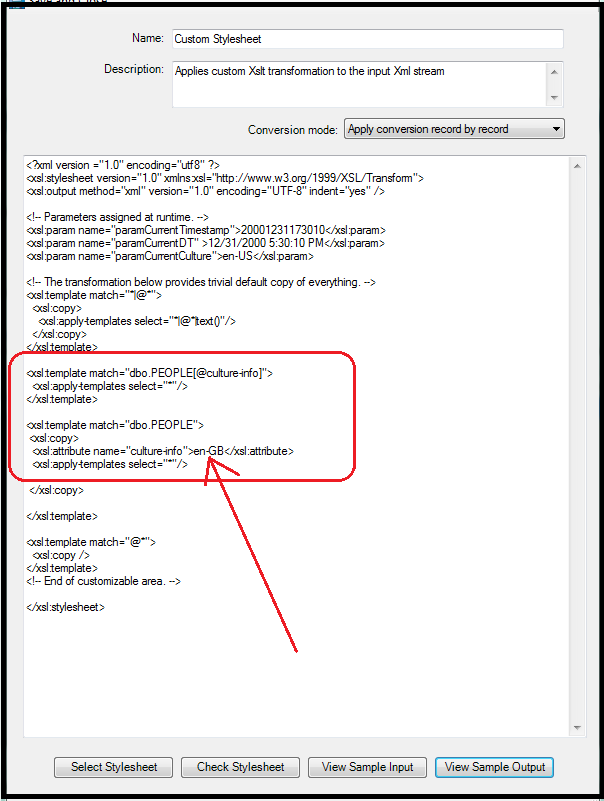
A solution to this scenario is to use an XSLT script within the Data Import configuration to specify the desired “Culture”. As an example, the XSLT script illustrated below is specifying the Great Britain ‘Culture’ and thus, will automatically format dates in the dd-mm-yyyy format.
<?xml version =”1.0″ encoding=”utf8″ ?>
<xsl:stylesheet version=”1.0″ xmlns:xsl=”http://www.w3.org/1999/XSL/Transform”>;
<xsl:output method=”xml” version=”1.0″ encoding=”UTF-8″ indent=”yes” />
<!– Parameters assigned at runtime. –>
<xsl:param name=”paramCurrentTimestamp”>20001231173010</xsl:param>
<xsl:param name=”paramCurrentDT” >12/31/2000 5:30:10 PM</xsl:param>
<xsl:param name=”paramCurrentCulture”>en-US</xsl:param>
<!– The transformation below provides trivial default copy of everything. –>
<xsl:template match=”*|@*”>
<xsl:copy>
<xsl:apply-templates select=”*|@*|text()”/>
</xsl:copy>
</xsl:template>
<xsl:template match=”dbo.PEOPLE[@culture-info]”>
<xsl:apply-templates select=”*”/>
</xsl:template>
<xsl:template match=”dbo.PEOPLE“>
<xsl:copy>
<xsl:attribute name=”culture-info”>en-GB</xsl:attribute>
<xsl:apply-templates select=”*”/>
</xsl:copy>
</xsl:template>
<xsl:template match=”@*”>
<xsl:copy />
</xsl:template>
<!– End of customizable area. –>
</xsl:stylesheet>
To help demonstrate how this works, we’ll compare the results of a CCure9000 Data Import with and without the use of the XSLT script.
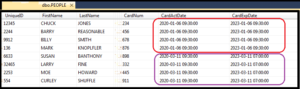
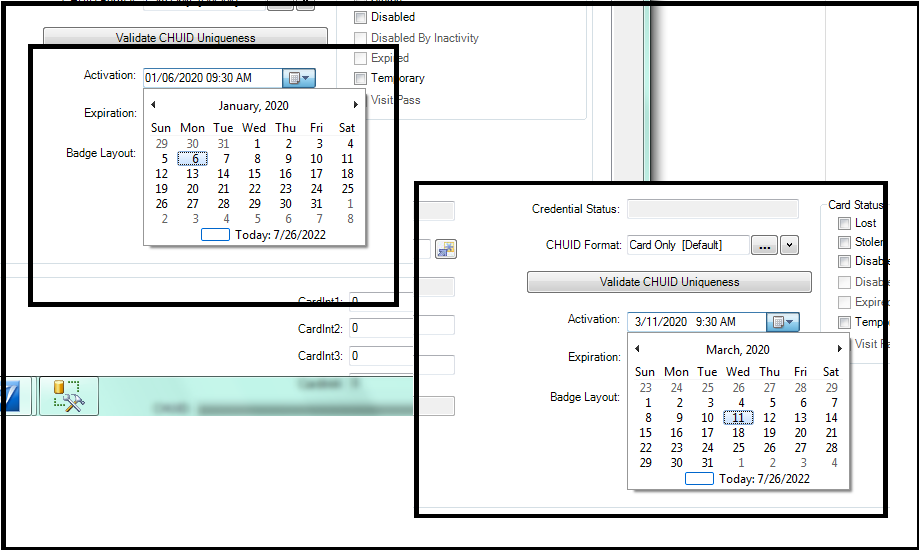
Here’s the source data that is being imported. The dates enclosed in red oval represent the date June 1 in England but represent the date January 6 in the U.S. The dates enclosed in the purple oval represent the date November 3 in England but represent the date March 11 in the U.S.
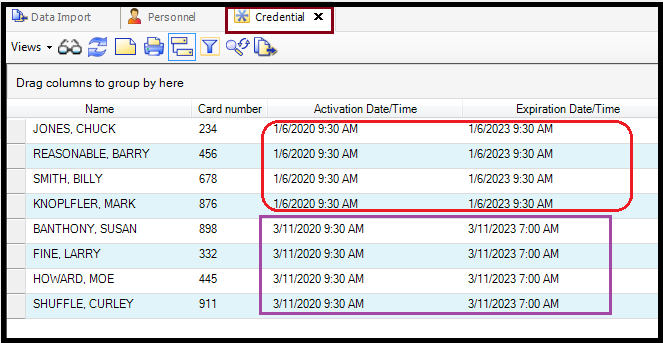
The records import successfully but all the dates are wrong because the MONTH & DATE components are reversed. The dates that should have reflected June 1 end up as January 6 in the CCure system. And the dates that should have reflected November 3 end up as March 11 in the CCure system.
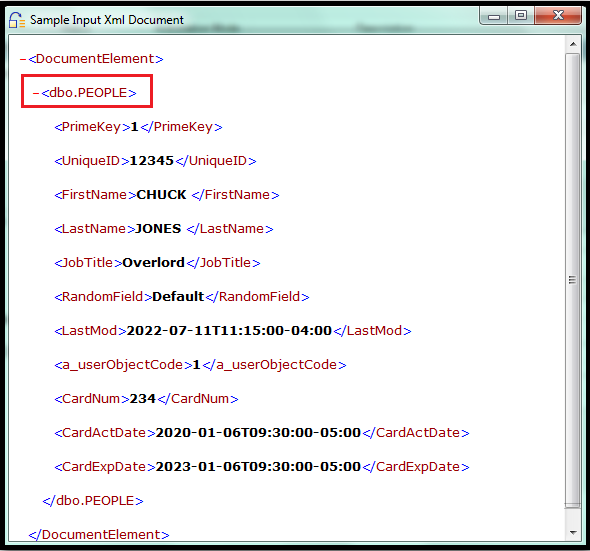
So, to solve this situation, we’ll implement an XSLT script. First, we need to look at the SAMPLE INPUT to take note of the name of the source data tag, which in this example is dbo.PEOPLE.
Reference the source data tag (dbo.PEOPLE) in the XSLT script and specify en-GB as the desired Culture. (“GB” as in Great Britain) This will force all the imported dates to respect the DD-MM-YYYY Date Format, essentially respecting the Great Britain Regional Settings. More simply, the import process will reverse the DATE & MONTH components of the imported date value.
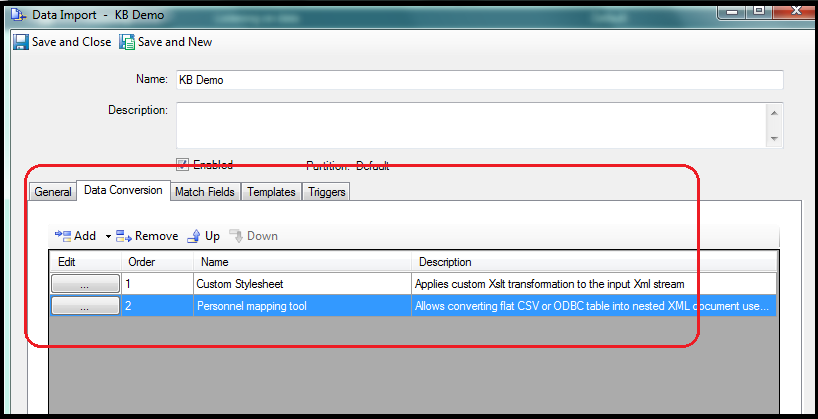
This XSLT Stylesheet goes before the Personnel or Field Mapping tool.
Now when viewing the SAMPLE CONVERTED OUTPUT, the culture-info tag references “en-GB” as specified in the XSLT script. This helps to confirm that the import process is recognizing the Culture that I specified in the XSLT script.
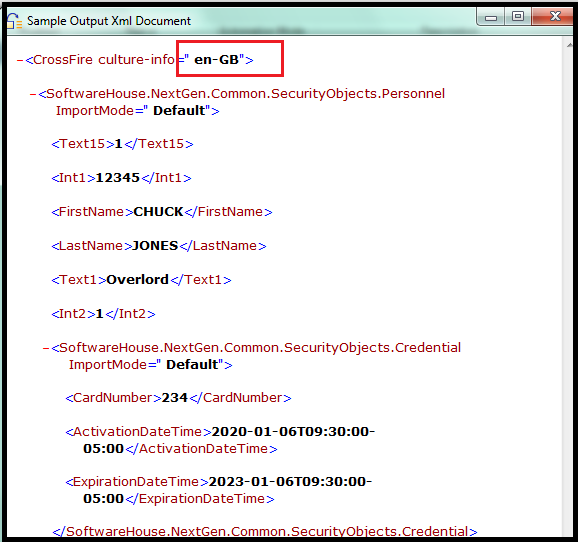
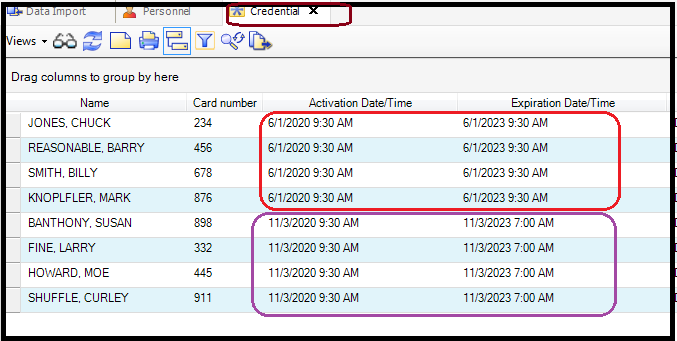
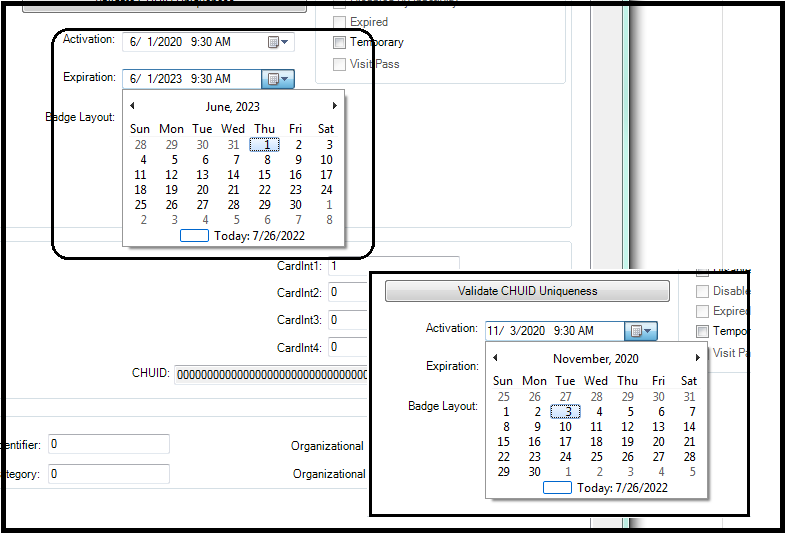
Now when importing the same data and utilizing this XSLT script, the MONTH and DATE components of the imported date are reversed when compared with the original import results. Now the imported records reflect the dates JUNE 1 and NOVEMBER 3 respectively.